How to Create Mind Maps in My Redmine (Mermaid Macro)
In this article, we explain how to use the Mermaid macro in My Redmine, the Redmine-based cloud service, to easily create mind maps from text.
With the Mermaid macro, you can quickly generate diagrams and charts in issues and Wiki pages.
This time, we focus specifically on how to create mind maps, along with practical examples.
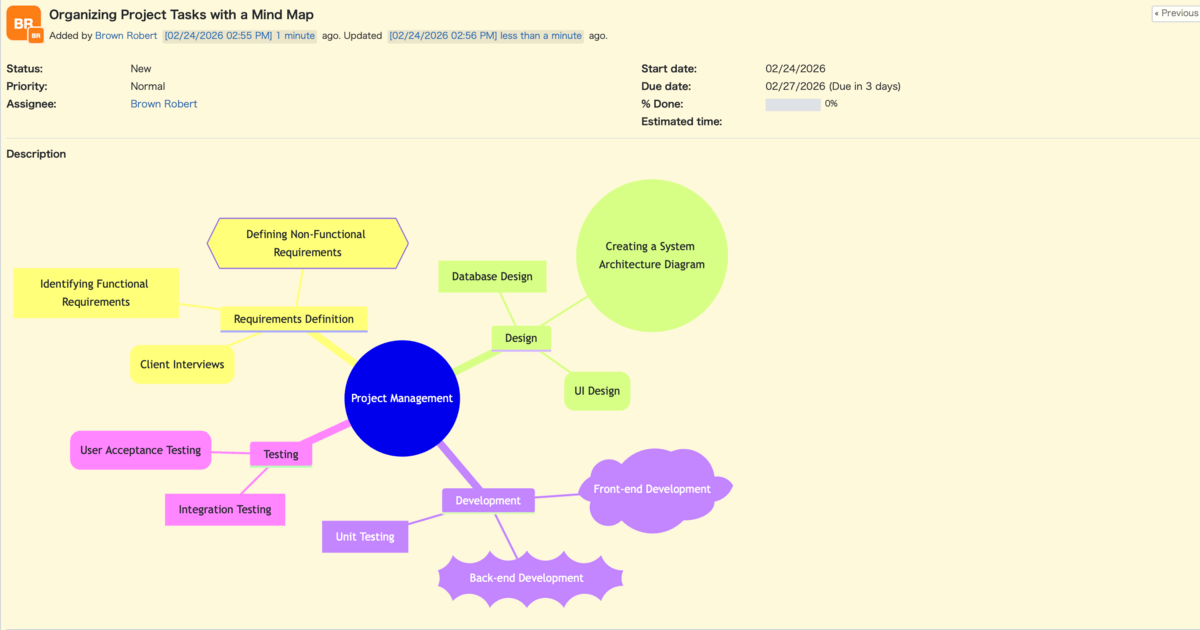
Table of Contents
- What Is a Mind Map?
- What Is the Mermaid Macro?
- How to Create a Mind Map in My Redmine
- Changing Node Shapes
- Practical Example: Organizing Project Tasks
- Summary
What Is a Mind Map?
A mind map is a thinking tool used to visually organize ideas and information in a radial structure.
By placing a central theme in the middle and branching out related keywords and ideas, you can easily grasp the overall picture—even when dealing with complex information.
Mind maps are useful for brainstorming, task breakdown, meeting notes, and many other situations.
What Is the Mermaid Macro?
The Mermaid macro is a feature that automatically generates diagrams—such as flowcharts, sequence diagrams, Gantt charts, and mind maps—from simple text-based syntax (Mermaid notation).
Because everything is written in text, no special diagramming tools are required.
In My Redmine, you can generate diagrams by writing Mermaid syntax in the following format:
{{mermaid
  Mermaid syntax goes here
}}
How to Create a Mind Map in My Redmine
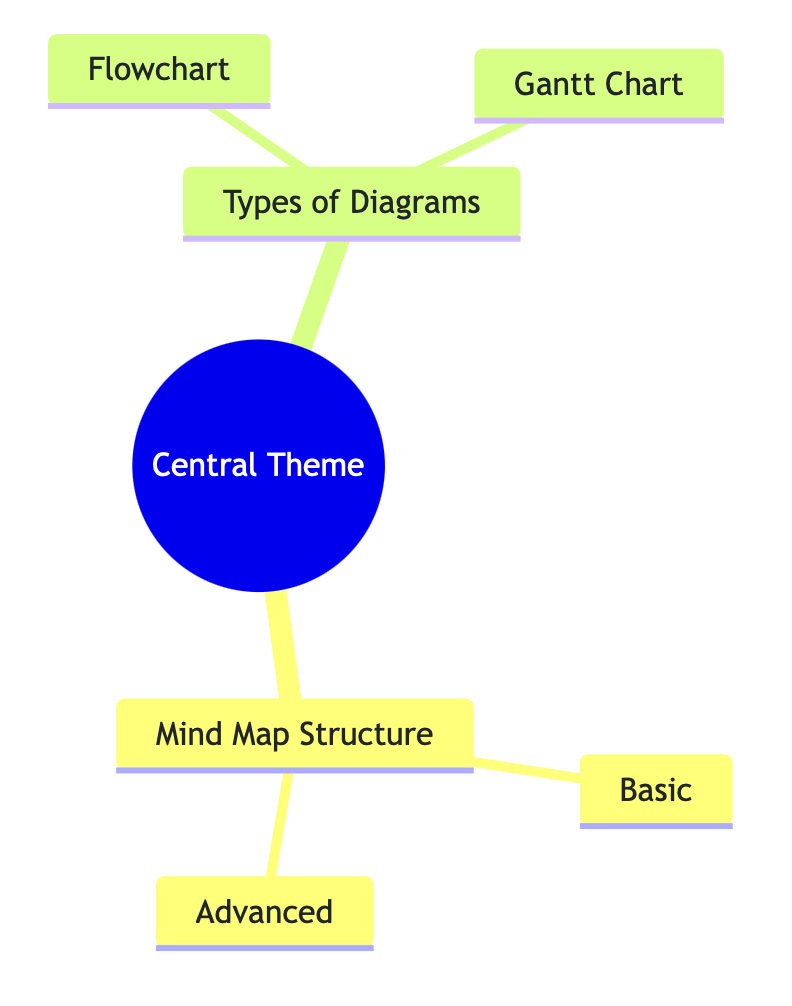
To create a mind map in My Redmine, use Mermaid syntax as shown below:
{{mermaid
mindmap
  root((Central Theme))
    Mind Map Structure
      Basic
      Advanced
    Types of Diagrams
      Flowchart
      Gantt Chart
}}
First, declare mindmap to indicate that you are creating a mind map.
Next, use indentation (spaces only) to represent the hierarchical structure.
The depth of indentation corresponds to the level of each node (branch).
The central theme is written at the top.
Child nodes are written one level deeper than their parent node.
Changing Node Shapes
In Mermaid mind maps, you can change the shape of a node by modifying the symbols surrounding the text.
This allows you to visually distinguish different types of information and create a more polished and visually appealing mind map.
[Text]: Square(Text): Rounded square((Text)): Circle)Text(: Cloud shape))Text((: Bang (zigzag) shape{{Text}}: Hexagon
Practical Example: Organizing Project Tasks
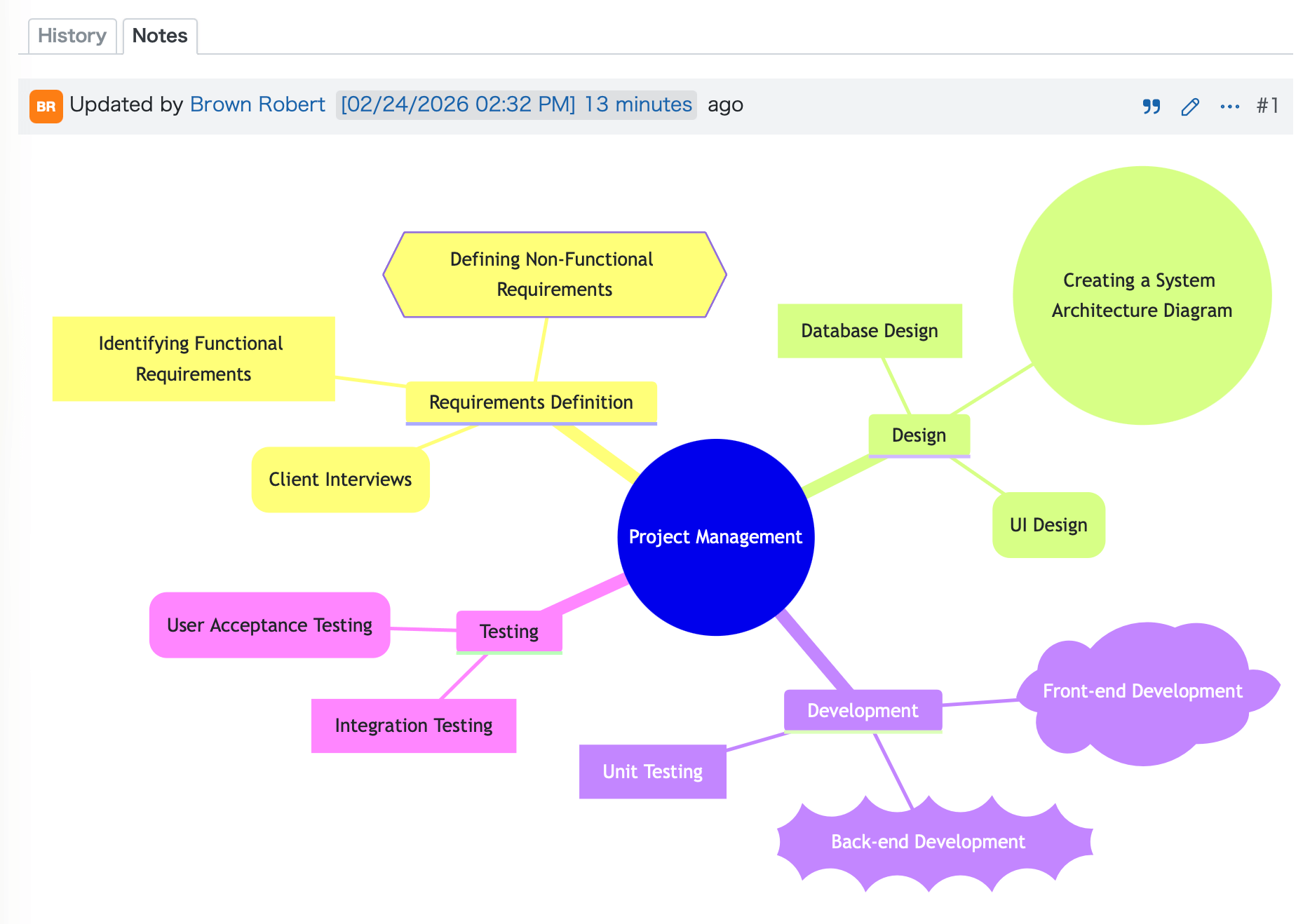
For example, let’s create a mind map with the theme “Project Management.”
{{mermaid
mindmap
    root((Project Management))
        Requirements Definition
            (Client Interviews)
            [Identifying Functional Requirements]
            {{Defining Non-Functional Requirements}}
        Design
            ((Creating a System Architecture Diagram))
            [Database Design]
            (UI Design)
        Development
            )Front-end Development(
            ))Back-end Development((
            [Unit Testing]
        Testing
            [Integration Testing]
            (User Acceptance Testing)
}}
Summary
By using the Mermaid macro in My Redmine, you can clearly visualize hierarchical structures and relationships, creating intuitive and easy-to-understand mind maps.
Even complex projects and processes become easier to share and execute within a team when organized as a mind map.
We encourage you to incorporate mind maps into your daily project management and documentation workflows.
Try It Now with My Redmine!
You can try out My Redmine today with our Free Trial. Experience the benefits of cloud-based Redmine firsthand by exploring its features and usability.
Click here for My Redmine Free Trial
You can try My Redmine for free for up to two months (until the end of the following month).