Migrate from Redmine to My Redmine Global Edition
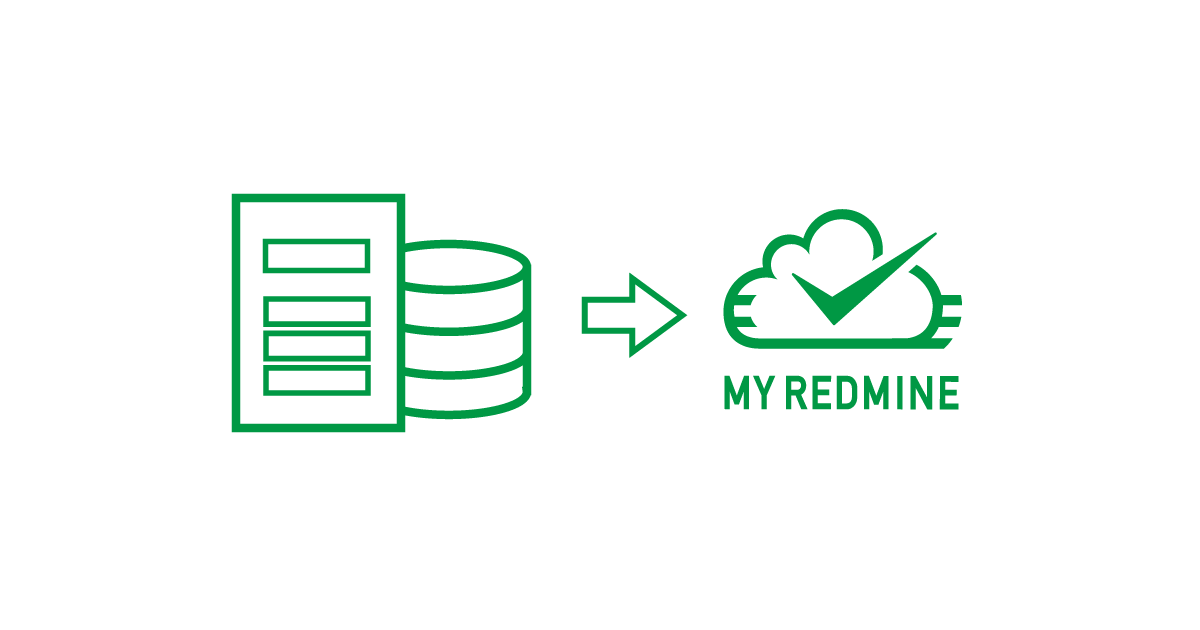
Simply provide us with your Redmine data, and we will prepare your My Redmine environment so that you can continue using your projects, issues, users, and attachments smoothly.
By migrating from a self-hosted Redmine environment to My Redmine, you can reduce operational and maintenance costs by eliminating the need for server maintenance, backups, troubleshooting, and Redmine version upgrades.
1. Pricing
Free data migration for subscribed customers
This service is provided free of charge on the condition that you subscribe to the official service.
Please note: Test migrations are generally not available.
2. Information Required to Determine Migration Feasibility
To determine whether migration is possible, please contact our Help Desk and provide accurate information for the following items.
-
Destination My Redmine Global Edition URL
If you only wish to confirm whether migration is possible, the destination My Redmine Global Edition URL may be left blank.
-
Version of the Redmine environment currently in use
How to check: Log in as an administrator and open "Administration" → "Information".
-
Database type and version used by Redmine
How to check: Log in as an administrator and open "Administration" → "Information".
-
Whether plugins are installed, and the names of installed plugins
How to check: Log in as an administrator and open "Administration" → "Plugins".
Plugins cannot be used after migration to My Redmine.
- Server time zone
-
Size of the
filesdirectory -
Total number of registered issues
How to check: Top menu → "Projects" → "Issues" → Change the status filter to "any" → Click "Apply" → Check the total number of issues displayed at the bottom of the page.
- Number of active users
-
Whether LDAP authentication is used
How to check: Open "Administration" → "LDAP Authentication" and confirm whether LDAP server information is displayed.
-
Whether repository integration, such as Git or Subversion, is configured
How to check: Confirm whether the "Repository" tab is displayed in existing projects.
3. Scheduling
If you have a preferred migration date, please contact the Help Desk together with the information listed in Section 2 above.
Our staff will confirm whether the requested date is available.
Available Hours for Support and Migration Work
- Monday to Friday
- 11:30 PM to 8:00 AM UTC
- Excluding Japanese public holidays
Please note that specific migration times cannot be requested.
4. Data Collection and Transfer
Data to Be Prepared by the Customer
| Data | Details |
|---|---|
| Database dump |
A dump file of the Redmine database. Supported databases:
|
| Attachment files |
Attachment file data from the files directory under the Redmine installation directory.Please compress the directory into a single .zip or .tar.gz file.
|
How to Obtain Redmine Data
Please refer to the following page on the official Redmine website and perform the necessary procedures according to your environment.
https://www.redmine.org/projects/redmine/wiki/RedmineBackupRestore
Data Transfer
Our Help Desk will provide the upload destination for the migration data. Once the migration date has been confirmed, please upload the data before the scheduled migration date.
5. Important Notes (Please Read Carefully)
Please review the following notes carefully before applying for migration.
- Any data entered into My Redmine before migration will be deleted and overwritten during the migration process. It is not possible to preserve existing data on My Redmine while additionally importing data from the source environment.
-
The migration process transfers an entire Redmine environment as a whole.
Important: It is not possible to migrate only specific projects or users, or to consolidate multiple Redmine environments into a single My Redmine environment. -
Links containing direct URLs from the source Redmine environment will not be automatically rewritten to the My Redmine Global Edition URL and may result in broken links.
Important: We do not rewrite such links on behalf of customers. If direct URL links are used, customers must update them manually. However, links written using Redmine wiki syntax do not require modification. - Plugins cannot be migrated.
6. Migration Process and Application Flow
STEP 1: Apply for a Free Trial
If you have not yet applied for a free trial, please apply for a free trial of My Redmine Global Edition, which will be used as the migration destination.
Customers who only wish to confirm migration feasibility without applying for a free trial may proceed directly to STEP 2 and send the required information.
STEP 2: Submit Information Required for Migration Assessment
Please send the required information so that we can confirm whether migration is possible.
If migration is possible, we will confirm available migration dates and contact you so that you can proceed with the migration application.
What You Need to Do:
Please contact us via the Help Desk with the required information listed above.
What We Will Do:
After reviewing the information, we will contact you regarding migration feasibility and available dates.
If you have a preferred migration date, please let us know.
We will coordinate the migration schedule with our staff and adjust the migration date accordingly.
STEP 3: Complete the Subscription Procedure
After the migration date has been finalized, please complete the subscription procedure through My Redmine Global Edition.
Please refer to the following page for details about the subscription process.
After entering your credit card information, please contact us via the Help Desk.
STEP 4: Upload Migration Data
What We Will Do:
After confirming that the subscription procedure for the free trial environment has been completed, we will provide upload destination information for the migration data.
What You Need to Do:
Please upload the migration data by the day before the migration date.
STEP 5: Migration Execution
What We Will Do:
We will import your data into the My Redmine Global Edition environment created in STEP 1.
Any data entered into the free trial environment, including issues, users, and settings, will be completely overwritten and deleted by the migration data uploaded in STEP 4.
After the migration work has been completed, we will contact you.
What You Need to Do:
You may begin using the service. Please confirm that the migration has been completed successfully.
Frequently Asked Questions
How long does the migration process take?
The migration process may take anywhere from several minutes to several hours, depending on the amount of data being migrated.
Since the actual required time can only be determined once the migration work begins, we are unable to provide an exact estimate in advance.
Can you migrate older Redmine versions?
Yes. We have experience migrating older Redmine versions, including Redmine 0.8 and 0.9.
If you are concerned about compatibility with your environment, please feel free to contact us first.
Can custom fields be migrated?
Yes. We migrate the entire Redmine environment so that you can continue using all your existing data, including custom fields, settings, users, issues, and attachments.
Can LDAP authentication still be used after migration?
If your LDAP server cannot be accessed over the Internet (from the My Redmine servers), users authenticated through LDAP may no longer be able to log in after migration.
Before migration, please switch affected users from LDAP authentication to Redmine's internal authentication and assign new passwords using the following procedure:
- Open "Administration" → "Users"
- Click the user's login ID
- Change the authentication method to "Internal"
- Click "Save"