RedMica AI Assistant
This page introduces the AI Assistant feature (AI-Powered Issue Summaries) provided by the RedMica AI Assistant plugin.
This feature supports both OpenAI and Azure OpenAI.
What is AI-Powered Issue Summaries?
AI-Powered Issue Summaries automatically analyze an issue’s description and comments and display a clear, concise summary on the page.
Even when an issue has accumulated many updates and exchanges, you can easily understand the current situation at a glance.
- The feature is disabled by default, and AI integration does not occur while it is disabled.
- To enable it, follow the steps below to configure it.

Required External Services
The AI-Powered Issue Summaries feature uses APIs from external AI services.
You can use either of the following:
- OpenAI API
- Azure OpenAI Service
You need to prepare these APIs yourself. By registering the API information in My Redmine, the AI Assistant becomes available.
Supported Plans
- Available on all My Redmine Global Edition plans
- No additional cost
(External AI service usage fees are charged directly by the provider.)
How to Set Up
Follow the steps below to configure the AI-Powered Issue Summaries (AI Assistant feature).
1. Open the AI Assistant settings in the Redmine administration screen

2. Register the configuration information according to the AI service you use
Select the AI service you want to use.
The required configuration items differ depending on the selected AI service.

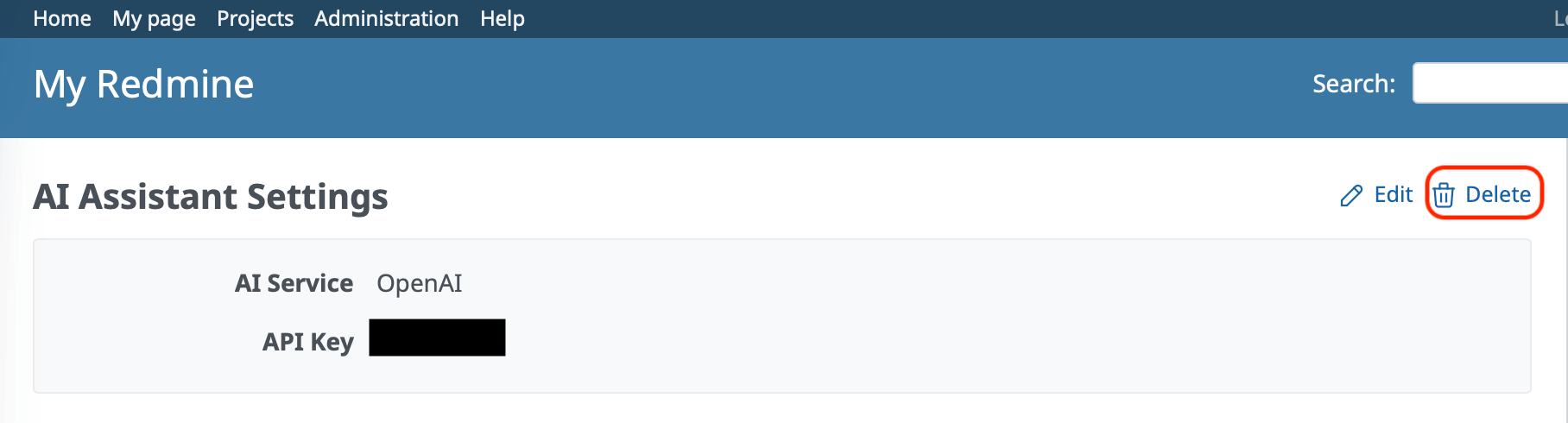
When using OpenAI

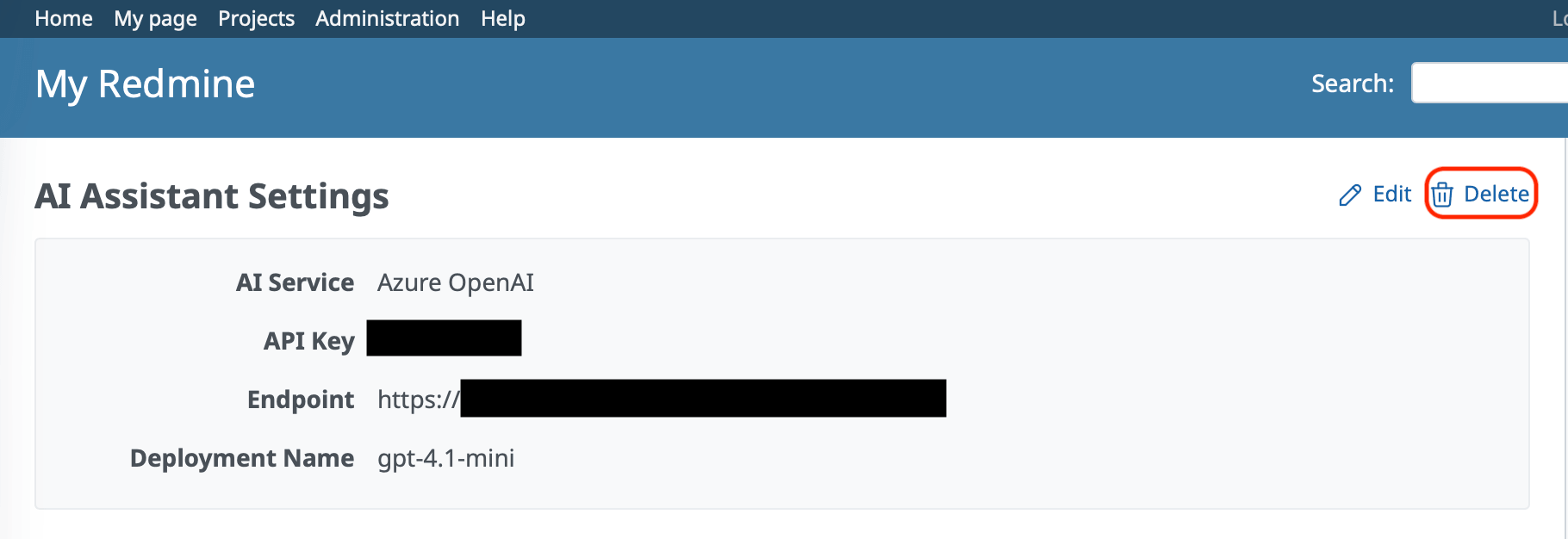
When using Azure OpenAI

We recommend using an OpenAI model equivalent to or higher than gpt-4o-mini.
3. Enable for Your Project
Saving the API key alone doesn’t enable the feature — you also need to enable it per project (it’s disabled by default).

Go to the project’s settings page → Modules → check AI Assistant, and click Save.
After enabling, the ✨ Summarize with AI button appears in that project’s issues.
How to Use
Click the “✨ Summarize with AI” button to have the AI analyze the issue content and generate a concise summary.
- The summary is displayed at the top of the issue
- It typically consists of a few lines

- The summary generated by AI is not saved within the issue.
- Navigating away or refreshing the page will remove it.
- This ensures each summary always reflects the latest state — click the button whenever you need an up-to-date view.
Disabling
Disable for a Specific Project
In the project’s settings page → Modules, uncheck AI Assistant and click Save.

- The ✨ Summarize with AI button disappears from issues in that project.
- Other projects where the feature is enabled remain unaffected.
Disable Globally
Click “Delete” on the AI Assistant screen.
After doing so:
- The AI Assistant (AI-Powered Issue Summaries feature) will be disabled across the entire Redmine instance.
- The “✨Summarize with AI” button will no longer appear on issues.
Summary
AI-Powered Issue Summaries feature in My Redmine is a powerful tool that significantly improves daily issue management.
It allows you to quickly understand long issue threads, making it easier to review past discussions and share information within your team.
Setup is simple—just prepare an external AI service and enable it in Administration and project settings. Once configured, you can start using the “✨ Summarize with AI” button immediately.